A guide to your home screen
Choose your
Weather Neon widget.
4×1, 4×2 or 4×4? Find the balance between a quick glance, more weather detail and space for your apps.
See the difference
Start with the shape.
These are real examples from Weather Neon’s widget collection. Each design chooses a different way to present time and weather; size alone does not tell you which details a widget includes.
A slim strip.

A low, wide design that keeps the clock and current weather together while leaving more of your home screen visible.
- Digital time in the center
- City, temperature and weather icon
- Battery indicator alongside the clock
A good fit if you want the essentials above a row of apps or against a favorite wallpaper.
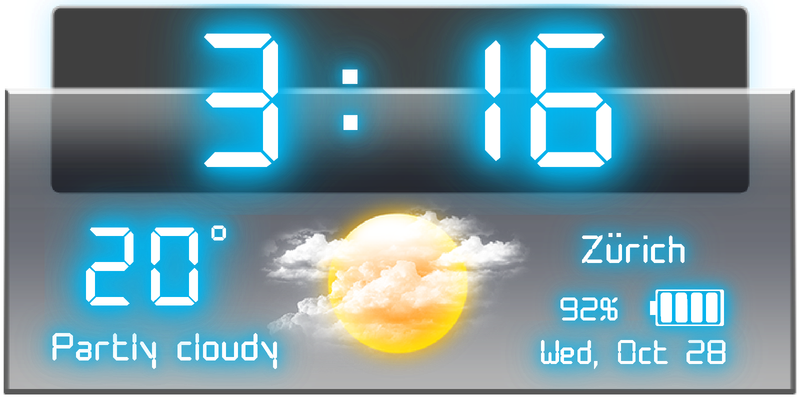
Room for context.
A broader panel with a large digital clock above a separate weather area. It gives the information more room to breathe.
- Large digital time
- Temperature, condition text and weather image
- City, date and battery indicator
A good fit if you want an easy-to-spot clock and current conditions in the same panel.
Make it the feature.
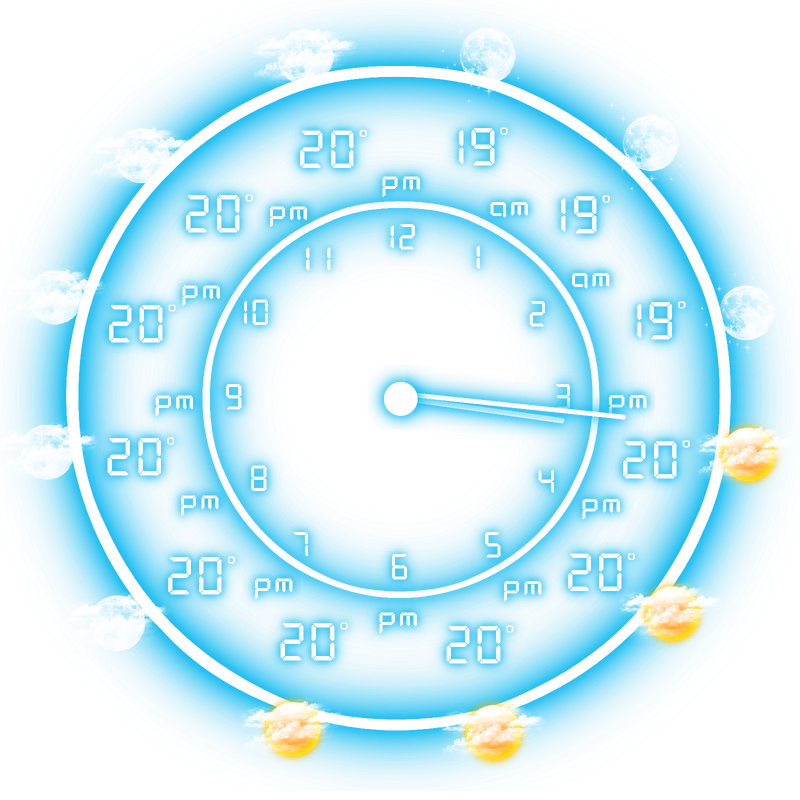
A square design with an analog clock at its center. Hourly weather wraps around the dial, making the forecast part of the clock face.
- Analog hands and hour markers
- Hourly temperatures around the dial
- Weather icons for those hours
A good fit if you want a prominent clock with the hourly outlook and can give it a larger area.
Previews show original widget artwork with illustrative times, locations, weather and battery values. Available designs and their appearance can vary by app version and device.
Explore more Weather Neon widget designsSpace, not pixels
What do 4×1,
4×2 and 4×4 mean?
These labels describe the widget layout families shown here: a wide strip, a medium panel and a square design. In Android’s home screen grid, a size such as 4×2 generally refers to a footprint four columns wide and two rows tall.
It is not a fixed measurement in pixels. Your launcher—the app that manages your home screen—controls its grid, spacing and available room. Android’s widget guidance explains that grid cells can differ between devices.
Do not assume that stretching one design will turn it into another. Choose the design you want from the options available in your installed app, then check whether your launcher allows that widget to be resized. Some widgets have fixed sizes; others can be resized within limits.
Find your fit
Choose for the way you look.
Before settling on a style, place it on the home screen you actually use. A layout that looks striking on its own still needs to work next to your wallpaper, folders and shortcuts.
Decide what you check first.
If it is the time and current temperature, start with Digital glow. If you also want the condition text and date in the same glance, try The glass panel. For an hourly outlook built into a clock face, look at Weather in orbit.
Leave space for your daily apps.
A slim strip works well when shortcuts fill most of the screen. A medium panel suits a clock-and-weather area above them. A square design needs more room, so consider a less crowded home screen page.
Check readability on your wallpaper.
Look at the smaller city, date or forecast labels at a normal viewing distance. If they compete with a busy wallpaper, try a quieter background or a design with a stronger panel behind its text. For detailed weather, open the full app.